Online License Management (OLM) Overview
Table of Contents
Introduction
The EZTitles Online License Management (OLM) provides a convenient way to manage and share your EZTitles licenses among associates within your organization. Through a web browser, you can control who has access to each license and specify when they can use it, including particular dates and daily time periods.
Your purchased EZTitles licenses are organized into license pools, with each pool containing a certain number of seats. The number of seats determines how many associates can use EZTitles simultaneously.
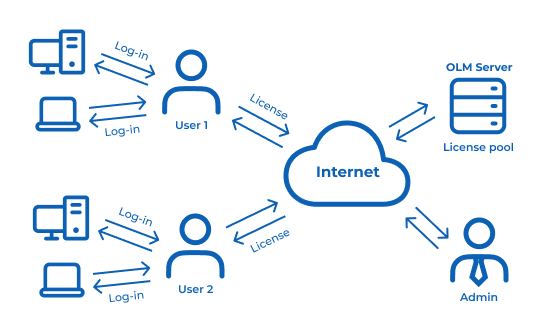
Licenses are not permanently assigned to individual associates. Instead, authorized associates can use an available seat from the corresponding license pool whenever they need to work with EZTitles. This allows licenses to be shared efficiently across your organization without requiring a dedicated license for each person.
Access to a license depends on both the associate's permissions and the availability of seats in the pool.
Accessing and Managing OLM
OLM is integrated into the EZTitles website and is accessible through the Services Portal. Account owners and administrators can manage license pools, assign access to associates, and monitor license usage from a central location.
OLM is hosted on a dedicated cloud server, allowing authorized associates to access their licenses from different locations. An internet connection is required to obtain and validate online licenses, although EZTitles can continue working offline for a limited time using previously cached license information.
Once an associate has been granted access to a license, they can sign in to EZTitles using their account credentials. EZTitles communicates with the OLM service to verify their permissions and obtain an available license seat.
Main Features
The Online License Management provides several tools for managing licenses and monitoring their usage:
-
License Pools - View your license pools and monitor the number of seats available, currently in use, and remaining free.
-
Member Management - Manage associates and define when they can access particular licenses, including specific dates and daily time windows.
-
Session Log - Review license usage history, including successful connections and refused connection attempts.
How OLM Licensing Works
To use an online license, an associate needs to be a member of your organization's EZTitles website account and have access to a license pool.
The process involves three simple steps:
-
Invite the associate - From Account Members in the Services Portal, send an email invitation to the associate to join your organization's OLM account. The associate needs to click the invitation link in the email to accept it. If they don't already have an EZTitles website account, they will also need to complete the registration process.
-
Assign a license pool - Assign the associate to the appropriate license pool and enable their access. You can also restrict access to specific dates and daily time periods.
-
Start EZTitles - When the associate signs in to EZTitles, either automatically prompted at startup or by manually selecting Login, the application connects to the OLM server to verify their access permissions and check license availability. If the associate is authorized and a seat is available, the license is activated and a seat is reserved for their use.
License Sessions and Seat Reservations
When an associate closes EZTitles or the application remains inactive, their licensing session ends. However, the seat remains reserved for that associate for a configurable period, defined by a license reservation time parameter.
During this period, the associate can resume working without competing for an available seat. Once the reservation period expires, the seat is released back into the pool and becomes available to other authorized associates.
Working Offline
EZTitles can continue working for a limited time without an internet connection, using the license information cached during its last successful connection to the OLM server.
The permitted offline usage period may vary depending on the organization's licensing conditions.
The cached license is specific to the computer on which it was obtained. Once the offline usage period expires, EZTitles needs to reconnect to the OLM server to validate the license.
License Pool Assignments
An associate can be assigned to only one license pool for each product. Assigning them to a different pool for the same product automatically replaces their previous assignment.
Connecting to OLM
EZTitles supports two methods of connecting to the OLM service:
-
Account-based login - Associates sign in to EZTitles using their EZTitles website credentials. Associates can also choose to remain signed in for convenient access or Logout at any moment.
-
Connection certificate - Associates can use a connection certificate (.eztcc file) to access online licenses, which can be downloaded through EZTitles Application Manager while signed in to their EZTitles website account.
Connection certificates are primarily intended for compatibility with older versions of EZTitles that do not support account-based login or cannot be updated immediately.
In EZTitles 7.3.1 and newer, both account-based login and connection certificates are supported until February 1, 2027. After this date, account-based login will be required.
Older versions of EZTitles will continue to rely on connection certificates to access online licenses, allowing them to remain in use without requiring an immediate software upgrade.
Managing OLM Through the Services Portal
Overview
The Online License Management (OLM) is integrated into the Services Portal on the EZTitles website. To access it, sign in to your EZTitles website account and open Services Portal.
The OLM management options are available from the account menu to account owners and administrators, provided that OLM is enabled for the organization.
The Services Portal provides several pages for managing online licenses, organization members, and their access permissions:
-
Account Members - View and manage members of your organization's account, including inviting new associates or removing existing members.
Removing an associate from a license pool does not remove them from the organization.
-
Account Member Tags - Create and manage tags to organize associates into logical groups, multiple tags can be assigned to the same associate.
-
OLM - View and monitor license pools and seat availability, manage members’ access to individual pools, and configure your organization’slicense reservation time.
-
OLM Members - Manage associates' access to license pools, including permitted dates and daily time periods.
-
OLM Session Log - Review license connection activity, including opened, closed, and refused sessions.
Managing License Pools
Open OLM from the Services Portal to view and manage your organization's license pools. The page is divided into two sections: Configuration and OLM Pools.
Configuration
The Configuration section allows you to adjust the License reservation time, specified in seconds.

This setting determines how long a license seat remains reserved for an associate after they close EZTitles. During this period, the seat remains assigned to the same associate, allowing them to resume working without having to compete for an available seat.
For example, a reservation time of 900 seconds (15 minutes) means that the seat remains reserved for 15 minutes after EZTitles is closed. Once this period expires, the seat is released back into the pool and becomes available to other authorized associates.
To change the reservation time, click the Edit button next to the setting.
OLM Pools
The OLM Pools section lists all license pools associated with your organization's account. License pools are created and configured by the EZTitles team according to your organization's needs. When additional licenses are purchased, they are added to the appropriate pools without requiring any manual configuration on your part.
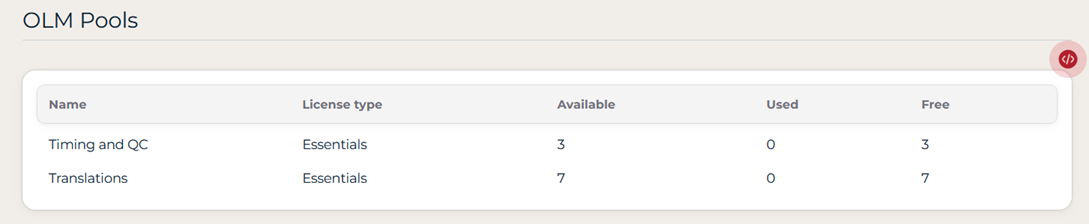
Each pool displays the following information:
-
Name - The name of the license pool.
-
License type - The EZTitles edition associated with the pool, such as Essentials, Standard or Ultimate.
-
Available - The number of seats currently available based on their license validity dates.
-
Used - The number of seats currently in use.
-
Free - The number of available seats that are not currently in use.
Viewing Pool Details
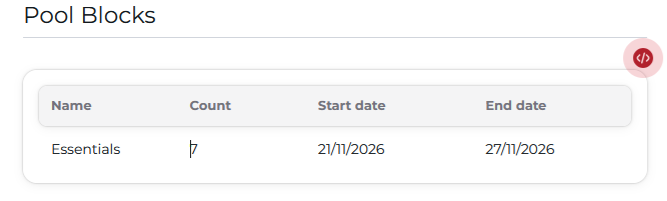
Click a license pool to view its details. The page displays the pool name and Support End Date, followed by two sections:

- Pool Blocks - Displays the individual license blocks that make up the pool. Each block represents a purchase and includes the license edition, number of seats, and the corresponding start and end dates.
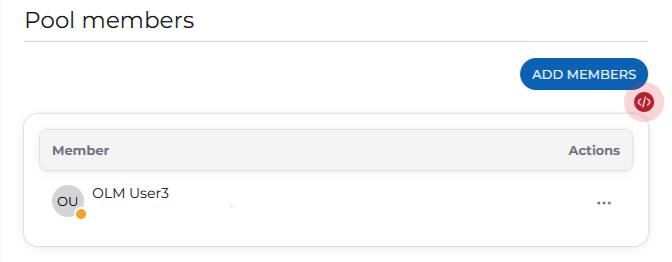
- Pool Members - Lists the associates assigned to the selected pool. You can also use Add Members to assign additional associates to the pool.
Member Status Indicators
A colored indicator next to each associate's name shows their current license access status:
-
Green - The associate has access to the pool and is currently using EZTitles, or their license seat remains reserved within the license reservation period.
-
Amber - The associate has access to the pool but is not currently using a license seat.
-
Red - The associate cannot access a license seat, because their access has been disabled. They remain a member of the organization's account.
Managing Pool Members
The actions menu next to each associate provides two options:
Managing OLM Members
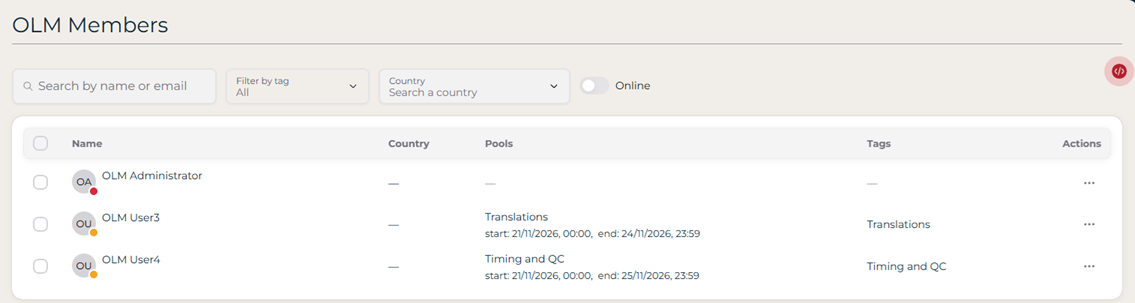
The OLM Members page provides a complete overview of your organization's associates and their online license access. From here, you can search and filter members, manage their license pool assignments, and control when they can use EZTitles.
Finding and Filtering Members
You can search for associates by name or email address, filter the list by tag or country, or enable the Online filter to display only associates with an active licensing session.
The list displays the following information for each associate:
-
Name and Email - The associate's name and registered email address.
-
Country - The associate's country.
-
Pool - The assigned license pool, including the start and end dates of their access period.
-
Tags - Tags assigned to the associate.
-
Actions - Options for managing the associate's license access and pool assignment.
A dash (-) indicates that a particular value has not been specified. An empty end date indicates that the associate's access has no expiration date.
Managing Member Access
The actions menu next to each associate provides several options, depending on their current license assignment and connection status:
-
Edit - Open the associate's account page to manage their details.
-
Add to Pool - Assign the associate to a license pool. If they are already assigned to another pool for the same product, the new assignment replaces the previous one.
-
Remove from Pool - Remove the associate's current license pool assignment.
-
Edit Availability - Modify the dates and daily hours during which the associate can access a license.
-
Enable / Disable - Allow or temporarily prevent the associate from using an online license. Disabling access preserves their existing settings and pool assignment, allowing access to be restored later without sending another invitation.
-
Disconnect - Terminate the associate's active licensing session, releasing the seat for other authorized associates. This option is available only while the associate is online.
Disabling an associate's access or removing them from a license pool does not remove them from your organization's account. To remove an associate entirely, use Account Members in the Services Portal.
Adding New Associates
Before an associate can use an online license, they need to be a member of your organization's EZTitles website account.
Open Account Members and click Add New to invite the associate.
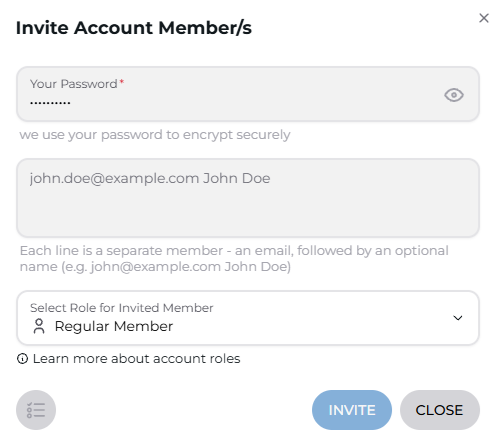
They will receive an email invitation to join your organization's account. To accept the invitation, they need to click the link in the email. If they don't already have an EZTitles website account, they will also need to complete the registration process.
Configuring License Access
Open OLM Members, or use Add Members from the corresponding license pool, to assign the associate to a pool and configure their access permissions. The Edit Availability form allows you to configure an associate's license pool assignment and availability.
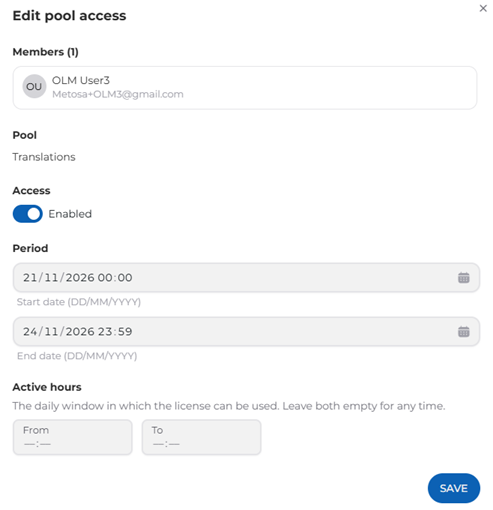
The following settings are available:
-
Access - Enable or disable the associate's access to the selected license pool. Disabling access has the same effect as selecting Disable from the member's actions menu.
-
Period - Specify the Start Date and End Date of the associate's access period, using the DD/MM/YYYY format. Leave the end date empty to allow unlimited access without a specified expiration date.
-
Active Hours (UTC) - Define the daily time window during which the associate can use a license, using the From and To fields. Leave both fields empty to allow access at any time of day.
Understanding Active Hours
Active Hours define the daily time window during which an associate can use an OLM license. The hours should be set to match the associate's intended local working hours.
Active Hours also allow two associates to share a single license seat by working different shifts. For example, you can set Associate 1 to From 09:00 and To 13:00, and Associate 2 to From 13:00 and To 17:00. This allows both associates to use the same seat at different times of the day.
Since the OLM Administrator enters Active Hours according to their own computer's local time, any time zone difference between the administrator and the associate needs to be taken into account.
The specified hours are saved as UTC in the OLM database. When displayed in the Services Portal or EZTitles, they are converted to the local time zone of the computer being used.
For example, if an associate in Germany needs access to EZTitles between 09:00 and 17:00, an OLM Administrator in Bulgaria would enter 10:00–18:00 to account for the one-hour time difference.
Tags provide a convenient way to organize associates into groups, such as teams, departments, or office locations. An associate can have multiple tags, allowing them to belong to several groups simultaneously.
Tags replace the user groups available in the previous OLM system. Unlike those groups, tags do not define license access permissions or availability periods. These settings are managed individually through each associate's license pool assignment.
You can create, modify, and manage tags from Account Member Tags in the Services Portal.
Managing Multiple Members
The OLM Members page allows you to apply changes to one or several associates simultaneously, making it easier to manage larger teams.
To select multiple associates, select the checkboxes next to their names or use the Select All checkbox. You can then perform the following actions on the selected members:
-
Add to Pool - Assign the selected associates to a license pool.
-
Remove from Pool - Remove their existing license pool assignments.
-
Edit Availability - Modify the access start and end dates, as well as the daily active hours. This option is available only when all selected associates belong to the same license pool.
-
Enable / Disable - Enable or temporarily disable license access for the selected associates.
-
Disconnect - Terminate the active licensing sessions of the selected associates. This option is available when the selected associates are online.
For easier management, you can filter the member list by tag before selecting associates. For example, to update the working hours of an entire editing team, filter the list by the team's tag, select the corresponding associates, and update their active hours in a single operation.
Monitoring License Activity
The OLM Session Log provides a detailed history of license usage and connection attempts across your organization. It allows administrators to monitor licensing activity, review completed sessions and identify unsuccessful connection attempts.
Viewing and Filtering Sessions
Open OLM Session Log in the Services Portal to view the session history.
You can search for sessions by username or filter the results by a specific date range.
Each entry includes the following information:
-
Username - The associate who initiated the licensing session.
-
Tags - Tags assigned to the associate.
-
Country - The associate's country.
-
Product - The EZTitles product or edition associated with the session.
-
Session Start - The date and time the session started.
-
Session End - The date and time the session ended.
-
Error - Information about any issues encountered during the licensing session.
Understanding Session Results
Sessions that start and end normally are recorded with their corresponding start and end times and an empty Error field.
If a connection attempt fails or a session is interrupted, the Error field provides additional information about the reason.
Some common messages include:
-
No available license - All available seats in the corresponding license pool were already occupied.
-
License expired - The license validity period or the associate's permitted access dates did not cover the connection attempt.
-
Session interrupted - The associate started a new licensing session, replacing their previous session.
Managing License Availability
If No available license appears frequently in the session log, it may indicate that the number of available seats is insufficient during certain periods.
You can review associates' access schedules and adjust their permitted dates or daily active hours to distribute license usage more efficiently throughout the day.
If additional capacity is needed, more license seats can be purchased and added to the appropriate pool. The additional seats become available without requiring associates to restart EZTitles.